Remove Site Actions For Users

Remove “Site Actions” for users based on their permissions
Step 1: Open the master page attached for your site into SharePoint Designer 2010/Visual Studio or Notepad

Step 2: Search for "
Step 3: Now, Just before .. Add following line


Step 4: Last, find "

scroll کردن متن در شیرپوینت 2010

یک وب پارت فرم Html بسازید و کد زیر را درون آن Paste کنید.


align="center"> direction="up" loop="true" width="35%">

THIS
IS A COOL WAY
TO MAKE YOUR TEXT
SCROLL UPWARDS


IT IS EASY AND FAST LOADING

تغییر دادن quick launch به منوی بازشو

این دو لینک به شما کمک می کنه که این کار رو انجام بدید


http://www.manageprojectsonsharepoint.com/blog/2011/04/26/enable-flyout-menus-on-the-quick-launch/


http://sharepoint.stackexchange.com/questions/4597/how-to-change-the-quick-launch-flyout-menu-background

حذف Header و Footer از Dialog Box (قسمت افزودن یا ویرایش مورد لیست)

برای حذف کافی است به کلاس مورد نظر s4-notdlg را اضافه کنید. مثلا برای حذف Footer


بازشدن لینک در پنجره جدید و افزودن توضیح به لینک

چكار بايد كنيم كه وقتي روي يك لينك كليك مي كنيم توي يه صفحه ي جديد باز بشه ؟

شما مي تونيد با اضافه كردن يه ميان كد به صورت "target="_blank  در تگ اوليه ي لينك دادن اين امكان رو به اون لينك بديد كه در صفحه ي جديد باز بشه . به نحوه ي قرار گرفتن اين ميان كد در كد لينك دادن توجه كنيد :

target="_blank" href="Link Adress">Link Name


توجه كنيد كه بايد قبل و بعد از اين ميان كد و هر ميان كد ديگه اي يك اسپيس بزنيد كه به كدهاي بغلي خودش چسبيده نباشه .

به طور مثال با كليك بر روي لينك زير مي بينيد كه در يك صفحه ي جديد باز ميشه :

  target="_blank" href="http://www.irLearn.com">irLearn سايت    == نمايش كد ==>    irLearn سايت


چكار كنيم كه وقتي موس رو رو لينك مي بريم يه توضيحي در مورد اون لينك ظاهر بشه ؟

برا اينكار هم بايد از يك ميان به صورت "title="tozih استفاده كنيد . كه بايد به جاي tozih ، توضيحي از لينك رو قرار بديد. اين ميان كد هم به صورت زير در كد لينك دادن قرار ميگيره :

title="tozih" href="Link Adress">Link Name


مثلا شما نشانگر موس رو روي لينك زير نگه داريد تا كاربرد اين ميان كد رو ببينيد:

  title="بهترين سايت آموزشي" href="http://www.irLearn.com">irLearn سايت

== نمايش كد ==>    irLearn سايت

مخفی کردن منوی سراسری در شیرپوینت 2010

برای این کار لازم به ویرایش MasterPage و Comment کردن کدها نیست . زیرا با این کار با خطا در ریبون لیست ها و صفحات مواجه می شوید.

تنها کافی است که در داخل Css ویرایش زیر را انجام دهید:

.s4-toplinks{
    display:none;
}

Delete a List by powershell in Sharepoint 2010

گاهی اوقات موقع باز کردن مدیریت محتوا و ساختار با خطا مواجه می شوید. این خطا به علت وجود یک لیست که وب پارت آن حذف شده است پیش می آید. برای حل این مشکل باید لیست مورد نظر را از طریق دستور زیر در Sharepoint 2010 ManageMent Shell حذف کنید.

Get-SPWeb “portal url” | % {$_.Lists.Delete([System.Guid]$_.Lists["name of list"].ID)}

Easy-Tabs-v5

خیلی خیلی راحت و مفید

http://usermanagedsolutions.com/SharePoint-User-Toolkit/Pages/Easy-Tabs-v5.aspx

اضافه کردن tab در ریبون شیرپوینت 2010

In this article we will be seeing how to create a custom tab, group and button to the server ribbon in Sharepoint 2010. Tabs are the root of the Server ribbon and they contain one or more groups. Every tab in the ribbon contains a series of one or more groups. Groups are used to associate controls with similar functionality. Controls are the items that live inside the ribbon that users can interact with. In this we will be creating a tab, group and control as shown in the following

SharePoint ribbon interface Introduction

Prerequisites

  1. SharePoint Server 2010
  2. SharePoint development tools in Microsoft Visual Studio 2010

Create a SharePoint project:

  1. Open Visual Studio 2010.
  2. On the File menu, go to New, and then click Project.
  3. In Project Types, under Visual C#, select Empty SharePoint Project.

    Create a SharePoint project
     
  4. Enter CustomTab as the project name, and then click OK.
  5. In the SharePoint Customization Wizard, select Deploy as a sandboxed solution, and then click Finish.

    SharePoint Customization Wizard
     
  6. Right click on the solution, click on Add => New item.

    SharePoint Customization Wizard
     
  7. Select Empty Element template and enter the name as CustomTab.

    SharePoint Customization Wizard
     
  8. Click on Ok.
  9. Open Elements.xml and replace the xml with the following

    xml version="1.0" encoding="utf-8"?>
    <Elements xmlns="http://schemas.microsoft.com/sharepoint/">
           <CustomAction
             Id="CustomRibbonTab"
             Location="CommandUI.Ribbon"
             RegistrationId="101"
             RegistrationType="List">
                  <CommandUIExtension>
                         <
    CommandUIDefinitions>
                               <
    CommandUIDefinition
                                 Location="Ribbon.Tabs._children">
                                      <Tab
                                        Id="Ribbon.CustomTab"
                                        Title="Custom Tab"
                                        Description="Custom Tab !!!"
                                        Sequence="501">
                                             <Scaling
                                               Id="Ribbon.CustomTab.Scaling">
                                                    <MaxSize
                                                      Id="Ribbon.CustomTab.MaxSize"
                                                      GroupId="Ribbon.CustomTab.CustomGroup"
                                                      Size="OneLargeTwoMedium"/>
                                                    <Scale
                                                      Id="Ribbon.CustomTab.Scaling.CustomTabScaling"
                                                      GroupId="Ribbon.CustomTab.CustomGroup"
                                                      Size="OneLargeTwoMedium" />
                                             Scaling>
                                             <
    Groups Id="Ribbon.CustomTab.Groups">
                                                    <Group
                                                      Id="Ribbon.CustomTab.CustomGroup"
                                                      Description="Custom Group!"
                                                      Title="Custom Group"
                                                      Sequence="52"
                                                      Template="Ribbon.Templates.CustomTemplate">
                                                           <Controls Id="Ribbon.CustomTab.CustomGroup.Controls">
                                                                  <Button
                                                                    Id="Ribbon.CustomTab.CustomGroup.CustomButton"
                                                                    Command="CustomTab.CustomButtonCommand"
                                                                    Sequence="15"
                                                                    Description=""
                                                                    LabelText="Custom Button"
                                                                    Image32by32="/_layouts/images/PPEOPLE.GIF"
                                                                    TemplateAlias="cust1"/>               
                                            
                                                           Controls>
                                                   
    Group>
                                            
    Groups>
                                     
    Tab>
                              
    CommandUIDefinition>
                               <
    CommandUIDefinition Location="Ribbon.Templates._children">
                                      <GroupTemplate Id="Ribbon.Templates.CustomTemplate">
                                             <Layout
                                               Title="OneLargeTwoMedium"
                                               LayoutTitle="OneLargeTwoMedium">
                                                    <Section Alignment="Top" Type="OneRow">
                                                           <Row>
                                                                  <
    ControlRef DisplayMode="Large" TemplateAlias="cust1" />
                                                           Row>
                                                   
    Section>                                            
                                            
    Layout>
                                     
    GroupTemplate>
                              
    CommandUIDefinition>
                        
    CommandUIDefinitions>
                         <
    CommandUIHandlers>
                               <
    CommandUIHandler
                                 Command="CustomTab.CustomButtonCommand"
                                  CommandAction="javascript:alert('Hello, world!');" />                          
                         CommandUIHandlers>
                 
    CommandUIExtension>
          
    CustomAction>
    Elements>

Deploy the solution:

  1. Right click on the solution, then click on Build.
  2. Right click on the solution, then click on Deploy.
  3. Go to the SharePoint site => Document Library (In the Elements.xml file we have mentioned RegistrationId="101" the custom tab that we have created will be available only in the document library ).
  4. You could be able to see Custom Tab , Custom Group and the Custom Button as shown in the following

    Deploy the solution Sharepoint

Adding users photo to welcome text in Sharepoint 2010


IOTAP’s Sharepoint branding team has helped several customers with applying corporate branding to their Sharepoint sites. Recently during one such Sharepoint 2010 branding exercise, to induce some personilzation touch to the intranet we decided to display the user’s photo before the welcome text.

After tinkering with the Sharepoint 2010 master page controls a bit we were able to find a solution for displaying the user’s photo.


Default Sharepoint 2010 page:


display_user_image3


Sharepoint 2010 page after applying the user photo:


display_user_image4


Below are the steps for adding users photo before welcome text


STEP 1:
Add the following Register tag at the top of the master page (before the doctype element)

<%@ Register Tagprefix="SPSWC" Namespace="Microsoft.SharePoint.Portal.WebControls" Assembly="Microsoft.SharePoint.Portal, Version=14.0.0.0, Culture=neutral, PublicKeyToken=71e9bce111e9429c" %>


STEP 2: Search for"s4-trc-container-menu" and add the following control (before welcome control)


The picture display seeting can also be toggeled by changing the ShowPlaceholder setting "true" to "false"

نمایش یک view خاص از لیست شیرپوینت در infopath

instead of adding the connection to the list as a sharepoint library connection, we will instead add it as a XML connection, and point it to a url that will allow us to filter the list

.http://{Site}/_vti_bin/owssvr.dll?Cmd=Display&List={ListGuid}&View={ViewGuid}&XMLDATA=TRUE


  • Add a new datasource
  • Receive Data
  • XML Document
  • Paste the path we constructed above, choose “Access the data from the specified location”
  • Give the data connection a name and clear the “Automatically retrieve data when form is opened”

How to reset the Claims to Windows Token Service account (SharePoint Server 2010)

http://technet.microsoft.com/en-us/library/gg502596.aspx


دکمه ورود به سایت برای شیرپوینت

If you don’t want the users to have the “Sign in” button only in the top right corner of the page or if you’re using custom master pages, you might want to add a Sign in button. The code is very simple:

Sign in

Ofcourse replace the “Sign in” text with text / image of your choice.

تنظیمات ssl در شیرپوینت 2010

http://www.codeproject.com/KB/sharepoint/SSLCertificateSharePoint.aspx


http://www.fivenumber.com/change-central-administration-port-number/

مشاهده خطاهای شیرپوینت با استفاده از ULS Viewer

ULS Viewer برنامه ای برای خواندن Logs

http://archive.msdn.microsoft.com/ULSViewer/Release/ProjectReleases.aspx?ReleaseId=3308


Bar Graphs using SharePoint 2010 Data Views

This post is applicable to SharePoint 2010 Server, SharePoint Foundation, and SharePoint Online in Office 365.

The inspiration for this post comes from an old post from 2008 on MSDN called CSS Style Bar Graphs using Data Views.  I learned a lot from this old post and used it a couple of times back in SharePoint 2007.  When I decided to do the same thing in 2010, I discovered that the same syntax does not work anymore.  So I figured out a new way to do it.

The idea is that you can take a number field in a list that represents percentage, and create a bar graph.  It will show a bar across a cell, with the total width of the table cell being 100%, and the width of a blue bar being the percentage value from a field in your list.  This is what the end result will look like:

ch5[120]

Here are the steps to accomplish this, just based off of the percent complete field on a task list:

  1. Open your task list in SharePoint Designer 2010.
  2. Create a new view, or just open the All Items view, from the list of views on the right.
  3. In your view, put the cursor in the far right column.  In the Table tab of the ribbon, click the Insert Right button, to insert a blank cell to the right.
  4. Put the cursor in the cell (the second cell down, NOT the title row), and on the Insert tab in the ribbon, click the Picture button to insert a picture.  This is the one I used:
    blueline
  5. At the bottom of SharePoint designer, click the Split button, so you can look at the code behind the image.  Click to select the image, and you’ll see that the code behind it is automatically highlighted
    ch5[124]
  6. The width is what we want to change.  In the code, select the current width (the numbers 856), and as soon as you type a { open curly bracket, it will prompt you with the names of all the fields in the list.
    percent
  7. Pick the first @PercentComplete, and then type a }% after it, so it looks like this:
    ch5[126]

That’s it.  Save the page, and hit F12 to quickly preview it in the browser.  Now your bars are all the width of however much percent complete each task is.

insert data view as a soap web service

by default sharepoint have a suite of webservices available and these are the ones that are available
  • http://ServerName:99999/_vti_adm/Admin.asmx – used for creating and deleting sites, change 99999 with your administrative port number
  • http://ServerName/_vti_bin/Alerts.asmx – used for working with alerts
  • http://ServerName/_vti_bin/DspSts.asmx – used for retrieving schemas and data
  • http://ServerName/_vti_bin/DWS.asmx – used for working with Document Workspaces
  • http://ServerName/_vti_bin/Forms.asmx – used for working with user interface forms
  • http://ServerName/_vti_bin/Imaging.asmx – used for working with picture libraries
  • http://ServerName/_vti_bin/Lists.asmx – used for working with lists
  • http://ServerName/_vti_bin/Meetings.asmx – used for working with Meeting Workspaces
  • http://ServerName/_vti_bin/Permissions.asmx – used for working with SharePoint Services security
  • http://ServerName/_vti_bin/SiteData.asmx – used by Windows SharePoint Portal ServerName
  • http://ServerName/_vti_bin/Sites.asmx – used to retrieve site templates
  • http://ServerName/_vti_bin/UserGroup.asmx – used for working with users and groups
  • http://ServerName/_vti_bin/versions.asmx – used for working with file versions
  • http://ServerName/_vti_bin/Views.asmx – used for working with views of lists
  • http://ServerName/_vti_bin/WebPartPages.asmx – used for working with Web Parts
  • http://ServerName/_vti_bin/Webs.asmx – used for working with sites and subsites

Now what we need here for this sample is the http://ServerName/_vti_bin/Lists.asmx.

Also in my sample I had created a filtered list so that anything that is ticked “publish to root” will be the only ones displayed on the list you want to compile.

This is a good way of separating your team site with the public site access, thus making the management of your announcements in one location and preventing giving access to users on your team site.

Note:  Thats is not a built in column and you have to manually create it.

Now from there you can now create your filtered list, here is the step by step process.

1. Go to List Settings

2. Go to the bottom of the page and click on create view

3. Choose standard view

4. Filter it according to the “publish to root” flag

5. Now your view is ready, click on it to view its List and View ID.

Take note of this and replace the characters “%2D” with “-”  so on this sample the List ID which is shown as 58a8179c%2Da062%2D4dec%2D9569%2D4f0d5518ebf8 will be 58a8179c-a062-4dec-9569-4f0d5518ebf8 and do that as well for the View ID.  Take note of this as you will be using this ID’s later

Now your everything is set up interms of your list data source, you need to now create your data source on Sharepoint Designer.  Fire up Sharepoint Designer and connect to your team site.

Now go to Data Sources and click SOAP Service Connection, then you can now define your Data Source.

Service location : /_vti_bin/Lists.asmx
Data Command : Select
Port : ListsSoap
Operation : GetListItems
Parameters : You need to fill up only listname and viewname and this is the one you had taken note a while ago.


Now go to General tab and give it a Name

And define Security Context on the Login Tab. Note: This is important as they security user that you will assign here should have access to the specific list thats why we havent used the Windows Authentication as it defeats the purpose of the one I discussed above (the two level announcement publishing) or you dont want to manage each users access to have view on specific List View.

Now go to any page you want to place your data view by clicking data view and choose your created SOAP Services Data Source.

Now the list will now show on the page but you still have to clean it up as it will be in its raw form, like title will have “ows_” prefix on it, the Body is formatted to text (you can format it to rich text like the one below), the author have some extra characters that you need to clean as well (you can do it by modifying the field to , so it removes that extra characters).

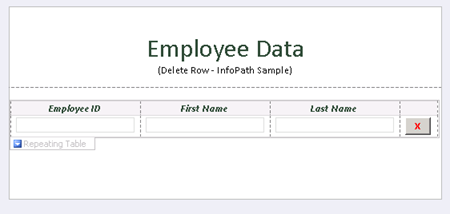
درج دکمه برای حذف یک ردیف از repeating table


Add Button and Click on the “Edit Form Code” in Button Properties.


public
void DeleteRow_Clicked(object sender, ClickedEventArgs e)

{


// Write your code here.

e.Source.DeleteSelf();

}

جستجو و فیلتر کردن اطلاعات لیست ها

امروز این لینک خیلی جالب رو از آقای آرش آقاجانی براتون می ذارم.

http://pspcommunity.org/blogs/arash/archive/2009/06/11/926.aspx


نمایش موارد وب پارت و فرم های infopath برای کاربران بی نام در شیرپوینت 2010

If you have enabled anonymous access on your Sharepoint farm and you still get prompted for a login when trying to access a list, it is most likely that your list exists in a ‘Publishing Site’.

This is because by default all publishing sites have a feature called ‘ViewFormPagesLockdown’ activated. This basically provides extra security for internet facing Sharepoint sites by stopping anonymous users viewing pages like AllItems.aspx etc.

If you want anonymous users to be able to view such pages you need to disable ‘ViewFormPagesLockdown’

1 Remove all anonymous access from the site.
2 Deactivate the ViewFormPagesLockdown Feature
3 Make sure that the list inherits its permissions from its parent.
4 Do an IISreset and close all browsers.
5 Wait 60 seconds or so for everything to start backup
6 Turn anonymous access on at the site level
7 Close the browser.
8 Browse to the website as anonymous user.
9 Click on a navigation link to browse to the list in question
10 You should now be able to browse list items as an anonymous user.

Activate Feature:

stsadm -o activatefeature -url -filename ViewFormPagesLockDown\feature.xml

De-Activate Feature:

stsadm -o deactivatefeature -url -filename ViewFormPagesLockDown\feature.xml

دیدن وب پارت های مخفی در سایت شیرپوینت

به ته آدرس عبارت contents=1? اضافه کنید. به صفحه وب پارت ها هدایت می شوید.

نمایش لینک ورود در شیرپوینت 2010

You can modify welcome menu control layout template. It is located in the %COMMONPROGRAMFILES%\Microsoft Shared\web server extensions\TEMPLATE\CONTROLTEMPLATES\Welcome.ascx file. You can add attribute Visible="False" to any SharePoint:MenuItemTemplate element (ID_LoginAsDifferentUser, for example).

لینک به لیست در یک subsite دیگر و اعمال فیلتر روی آن

روی لیست موردنظر کلیک کنید. از منوی عملیات گزینه نمایش تغذیه Rss را انتخاب کنید. آدرس صفحه ای که بازمی شود را کپی کنید. در محلی که می خواهید لینکی به یک لیست داشته باشید یک وب پارت از نوع Rss viewer اضافه کنید.وارد قسمت ویرایش جزء وب مشترک شده و در قسمت آدرس کانال Rss، آدرس صفحه Rss مربوط به لیست را که قبلا کپی کرده بودید، paste کنید.

برای محدود کردن دسترسی این لینک به کاربر واردشده، وب پارت current user filter را اضافه کنید. با انتخاب این وب پارت و از طریق گزینه اتصالات، وب پارت Rss viewer  ای که قبلا وارد صفحه کرده بودیم را به این وب پارت اتصال می دهیم.

این روش برای فیلتر کردن هر نوع وب پارتی استفاده می شود.

ایجاد کارتابل شخصی با استفاده از فیلتر روی لیست وظایف

برای نمایش کارتابل به یک کاربر خاص استفاده از  وب پارت content query راه مناسبی است. از طریق گزینه ویرایش جزء وب مشترک، از لیست کشویی وظایف را انتخاب کرده و در قسمت فیلتر گذاری گزینه "ارجاع به" و سپس ]به من[ را تیک بزنید. این کار باعث می شود تا کاربر تنها بتواند وظایف مربوط به خود را مشاهده کند.

همچنین برای اینکه شخص دیگری نتواند کارتابل کاربر موردنظر را مشاهده کند، با استفاده از تنظیم مخاطبان هدف موجود در وب پارت می توانید این ویژگی را فعال کنید.

فیلترکردن لیست براساس وضعیت ورک فلو

Status Value
Not Started 0
Failed on Start 1
In Progress 2
Error Occurred 3
Canceled 4
Completed 5
Failed on Start (retrying) 6
Error Occurred (retrying) 7
Canceled 15
Approved 16
Rejected 17

در لیست موردنظر روی تغییرنما کلیک کنید و در قسمت فیلتر،

به جای مثلا وضعیت برابر است با تایید شده باید انتخاب کنید:

وضعیت برابراست با 16

در این موارد باید مقدار عددی را واردکنید.

ذخیره سایت به عنوان الگو در شیرپوینت 2007

برای ذخیره سایت به عنوان الگو عبارت زیر را به آدرس سایت خود اضافه کنید.

 "/_layouts/savetmpl.aspx"

راحت و سریع.

Backup & restore با استفاده از دستور stsadm

Backup & restore با استفاده از دستور stsadm:

stsadm –o backup –url <URL of the site collection>  –filename Name of the backup file> -backupmethod

stsadm –o restore –url <URL of the site collection> -filename <Name of the backup file>

البته این روش زیاد به درد بخور نبود. پیشنهاد می کنم از طریق central administration عمل backup رو انجام بدید.

نصب کامپوننت ها و وب پارت ها

بعد از دانلود کامپوننت یا وب پارت مورد نظر، برای نصب سه راه وجود دارد:

1.       اجرای فایل bat

2.       اجرای فایل wsp با استفاده از دستور stsadm

3.       اجرای فایل setup

راه حل یک و سه ساده است. اما در مواقعی که  هیچکدام از اینها در دسترس نبود، باید فایل wsp را با کلیک راست روی command prompt و انتخاب run as administrator و با استفاده از دستور زیر اجرا کنید:

Stsadm –o addsolution –filename c:\filename.wsp               

فایل stsadm.exe را باید حتما در دایرکتوری که هستید، کپی کنید. 

بعداز نصب کامپوننت، برای فعال کردن آن وارد central administration شده و آن را deploy  کنید. برای deploy کردن: 1. در قسمت operation روی solution management کلیک کنید. اگر کامپوننت not deploy بود، آن را deploy کنید.

2. با انتخاب shared service 1 و مراجعه به قسمت site action-> site settings  ، روی site features کلیک کنید. اگر کامپوننت در این قسمت not active است، آن را active کنید. یا اینکه می توانید در قسمت site collection feature، آن را active کنید.

3. داخل تنظیمات خود سایت با استفاده از گزینه امکانات سایت می توانید کامپوننت را active کنید.

نکته: سه مورد بالا برای کامپوننت ها یکسان نیست.

HTTP Error 503. The service is unavailable in SharePoint

اگر در قسمت sharepoint central administration و با کلیک روی shared servise1  با خطای

HTTP Error 503. The service is unavailable in SharePoint  مواجه شدید مسیر زیر رو دنبال کنید.

Start -> All Programs -> Administrative Tools -> Internet Information Services (IIS) Manager

Application Pool مربوط به اون shared servise در قسمت Application Pools رو انتخاب کنید. Application Pool باید در حالت started  باشد. با کلیک روی Advance settings و در قسمت  process model از پنجره بازشده روی Identity و بعد set کلیک کنید.

یک username و password برای اون set کنید.

راه اندازی MySite در شیرپوینت 2007

مسیر زیر را برای فعال کردن گزینه MySiteدر سایت خود دنبال کنید:

Central administration->application managment->define manage path

سپس web application مورد نظر که shared service1 روی آن تنظیم شده است را انتخاب نموده و مسیرهای MYSite از نوع Explicit inclusion و Personalاز نوعwildcard inclusionرا ایجاد کنید.

حال باید یک Site Collectionایجاد کنید توجه داشته باشید که باید برای  URL پسوند MySite انتخاب شودو templateسایت باید از نوع Enterpriseو MySite Host باشد  بعد از این مرحله با رفتن به قسمت  Application Management->self-service site management گزینه ی Onرا باید انتخاب کنید تا self-serviceفعال شود.سپس باکلیک رویshared service1 سه مسیر زیر را دنبال کنید.

Personalization services permissoins->NTAUTORITY ->check (Create Personal site & 1.  Use   Personal  Features-> click save

2. انتخاب MySite setting. در قسمت Prefered Search Center جای خالی را پرکنید (مانند Example)

در قسمت Personal Site Provider تایپ کنید: http://sitename/Mysite

در قسمت location، personal را وارد کنید. می توانید Allow user to choose the language... را تیک بزنید تا کاربر بتواند زبان موردنظر خود را انتخاب کند.

3. در قسمت user profile and properties روی start full import کلیک کنید و منتظر بمانید تا complete شود.

در پایان IIS را Reset کنید.

حال می توانید از  MySite خود لذت ببرید.